After launching my website and building my Digital Marketing Lab, the next step was to implement Google Analytics 4. I wanted to start collecting data as early as possible so I could measure how visitors interacted with the site and use those insights to guide future improvements.
This project documents the implementation process, the decisions I made along the way, and the lessons I learned while setting up the analytics foundation for my website.
Table of Contents
- Overview
- Objectives
- Research
- Planning
- Implementation
- Tools Used
- Challenges
- Solutions
- Results
- Key Learnings
- Next Steps
- Resources
- Why This Project Matters
| Type | Portefolio Project |
| Status | Completed |
| Duration | A couple of hours |
| Skills | Website Analytics, Analytics Implementation, Data Collection, Data Verification |
| Tools | Google Analytics 4, Site Kit by Google, WordPress, Google Chrome, Google Analytics Realtime |
| Last Updated | July 2026 |
Overview
The project involved implementing Google Analytics 4 (GA4) on my WordPress website and ensuring that data was collected correctly from the start. This included creating and configuring a GA4 property, connecting the website to Google Analytics 4, verifying the implementation, and confirming that key website interactions were being recorded successfully.
Objectives
The primary objective of this project was to implement Google Analytics 4 correctly and begin collecting reliable website data from day one. By establishing a solid analytics foundation, I aimed to:
- Track website traffic and visitor behaviour.
- Verify that data was collected accurately.
- Prepare the website for future event tracking and reporting.
- Build a foundation for making data-driven improvements over time.
Research
Before implementing Google Analytics 4, I researched Google’s recommended setup process to understand the available implementation methods and current best practices. I learned that GA4 can be connected to a website in several ways, including manual installation, Google Tag Manager, or by using plugins such as Site Kit by Google for WordPress.
Since my website is built on WordPress, I chose to implement Google Analytics 4 using Site Kit by Google. This approach provided a simple and reliable way to connect the website without manually adding tracking code, while still following Google’s recommended setup process. I also wanted a solution that could be implemented quickly so data collection could begin as soon as the website was launched.
My research focused on understanding how Google Analytics 4 uses a property, a web data stream, and a Measurement ID to collect visitor data. I also explored how Enhanced Measurement automatically tracks common user interactions, such as page views and scrolls, and how the Realtime report can be used to verify that tracking is working correctly after implementation.
To support the implementation, I used Google’s official documentation together with a practical video tutorial that demonstrated the setup process for a WordPress website. Combining both resources helped me understand not only how to configure Google Analytics 4, but also why the recommended implementation follows current best practices.
Planning
Before starting the implementation, I planned the setup to ensure analytics data would be collected correctly from the beginning. I identified the key components required for the implementation, including a Google Analytics 4 property, a web data stream, and the Site Kit by Google plugin for connecting Google Analytics to my WordPress website.
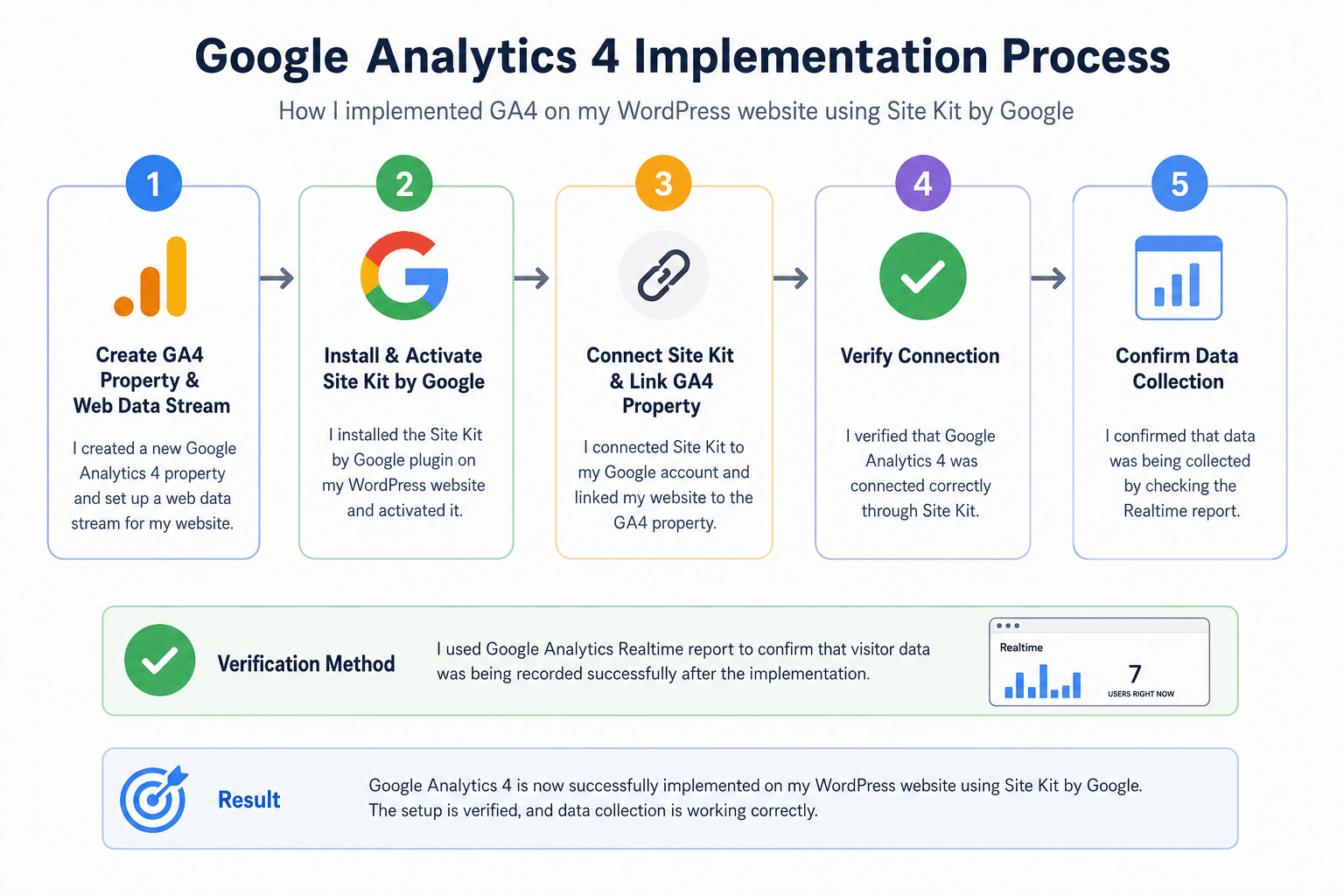
The implementation was divided into five main stages:
- Create a Google Analytics 4 property and web data stream.
- Install and activate Site Kit by Google.
- Connect Site Kit to my Google account and link the GA4 property.
- Verify that Google Analytics was connected correctly.
- Confirm that data was being collected using the Realtime report.
Implementation
I created a new Google Analytics 4 property and web data stream. I then installed the Site Kit by Google plugin on my WordPress website, connected it to my Google account, and linked the website to my GA4 property.
Using Site Kit, I linked my website to the Google Analytics 4 property without manually adding the tracking code. Once the connection was established, I verified the implementation by checking the Google Analytics Realtime report and confirming that visitor data was being recorded successfully.
Tools Used
- Google Analytics 4 – Website analytics and user behaviour tracking
- Site Kit by Google – Connected Google Analytics 4 to the WordPress website
- WordPress -Website platform
- Google Chrome – Testing and verification
- Google Analytics Realtime -Verified incoming data after implementation
Challenges
One of the main challenges was deciding which Google Analytics 4 features to enable during the initial setup and which ones to leave for later. Google offers a wide range of configuration options, and it was important to distinguish between the features required for a basic analytics implementation and those that could be added as the project evolved.
Another challenge was that I had never used Site Kit by Google before. Initially, I expected the setup process to be more complex, but after following the documentation and connecting the required services, the implementation proved to be straightforward. The plugin simplified the connection between WordPress and Google Analytics 4, allowing me to focus on verifying that data was collected correctly rather than dealing with manual installation.
Solutions
The implementation was completed successfully, and Google Analytics 4 is now connected to my WordPress website through Site Kit by Google.
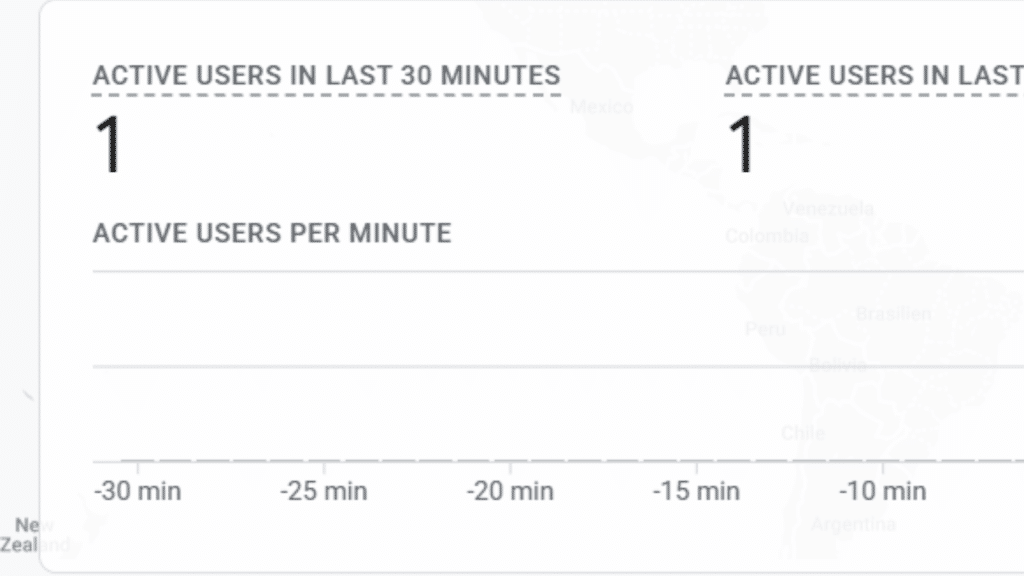
During the verification process, I discovered that my Under Construction plugin prevented tracking from working as expected. After disabling the plugin, I tested the implementation by opening the website in a different browser and confirmed that my visit appeared in the Google Analytics 4 Realtime report.
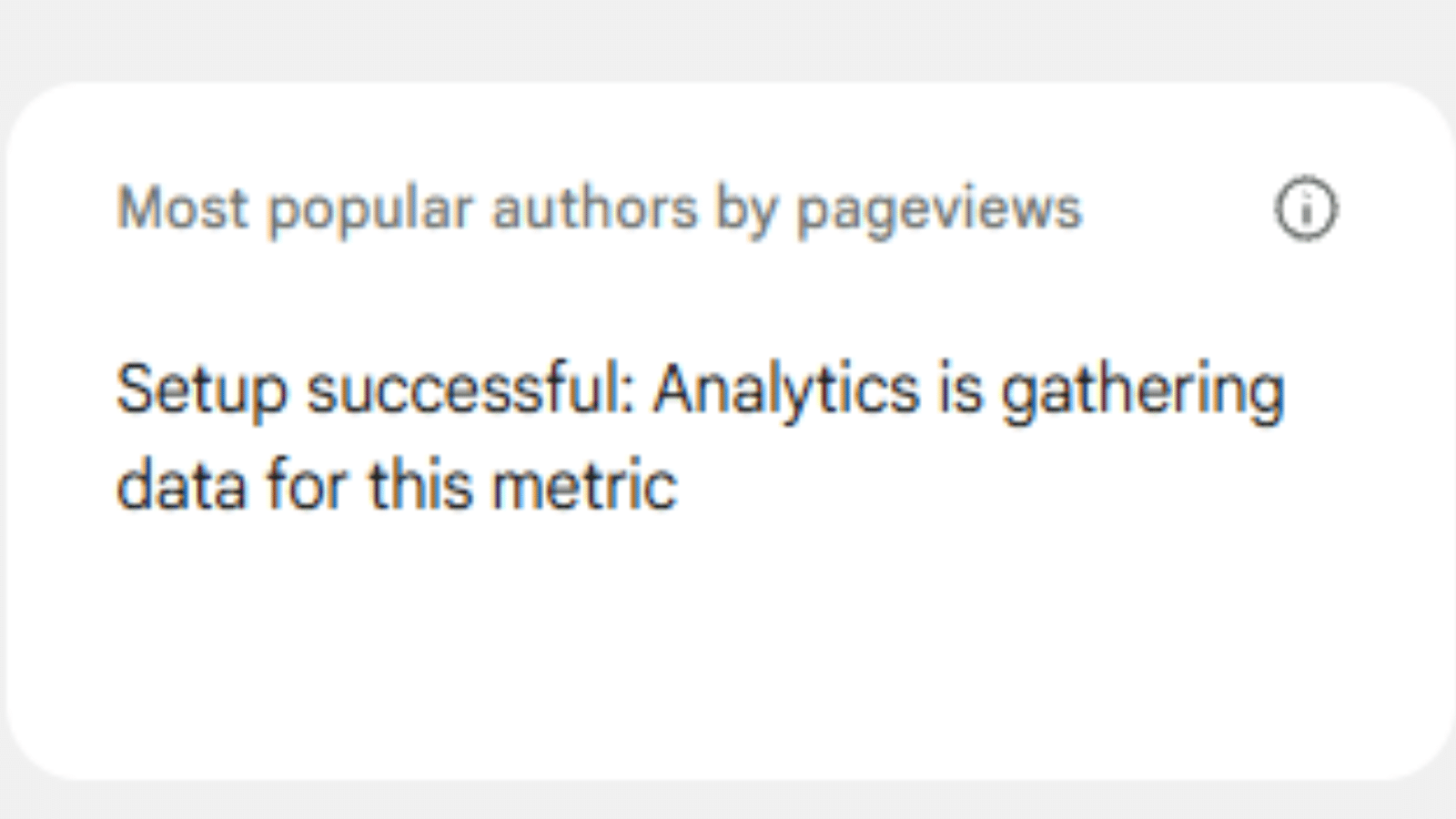
Although the website is still new and has very little traffic, the setup has been verified and is ready to collect data as visitors begin using the site. This provides a reliable foundation for future analysis and optimisation.
Results
The project resulted in a fully functioning Google Analytics 4 implementation on my WordPress website. The connection was successfully verified using the Realtime report, confirming that visitor data was being collected correctly.
Although the website currently has limited traffic, the analytics infrastructure is now in place and ready to support future analysis. The implementation also established a baseline for measuring website performance and identifying opportunities for optimisation as the site grows.
Key Learnings
This project gave me hands-on experience with Google Analytics 4 and Site Kit by Google. I learned how to configure a basic analytics setup, verify that data was collected correctly, and understand the relationship between WordPress and Google Analytics.
The project also highlighted that implementing GA4 is only the first step. As the website develops, I plan to review the available settings in more detail, explore additional tracking features, and optimise the analytics configuration where appropriate. During the implementation, I also identified that the homepage has room for performance improvements, making website speed a logical focus for a future project.
Next Steps
The next phase of the project includes:
- Analyse and improve website speed and Core Web Vitals
- Configure Google Tag Manager
- Connect Google Search Console
- Perform technical SEO optimisation
- Add HubSpot CRM
- Implement email marketing automation
- Build additional portfolio projects
- Publish SEO-focused content
- Create dashboards for analytics reporting
Resources
- Google: How to Install Google Analytics 4 On WordPress With Google Site Kit
- YouTube: Set up Analytics for a website and/or app
Why This Project Matters
Implementing Google Analytics 4 established the foundation for measuring and improving my website using real data rather than assumptions. Without analytics, it is difficult to understand how visitors interact with the site or evaluate whether future changes have a positive impact.
This project also marked the beginning of a more data-driven approach to digital marketing. With Google Analytics 4 in place, I can measure website performance, monitor user behaviour, and use those insights to guide future optimisation projects such as improving website speed, implementing conversion tracking, and building reporting dashboards.